TeamPhotoshop
 
Learn to make some great chrome text


Making some nice Chrome Text:

1.
Start out by making a new 400x400 image on a white background. Using the type tool create your type (use black for your color for this tutorial). For this tutorial I used a Times New Roman font at 180 pt. size and crisp anti-aliasing.

 2.
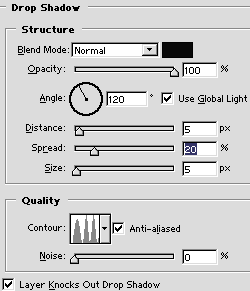
Now go to Layer/Layer style/Drop shadow OR just double click on your type layer on the layers palette. Once the Layer Style box has popped up use the following values for the drop shadow.

 3.
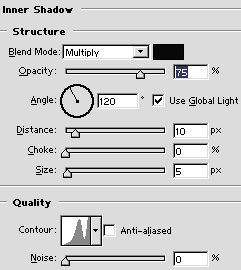
Now move down to the Inner Shadow box and use these values.

 4.
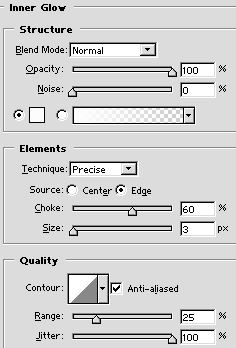
Now move down to your Inner Glow box and use the values I have here...
 5.
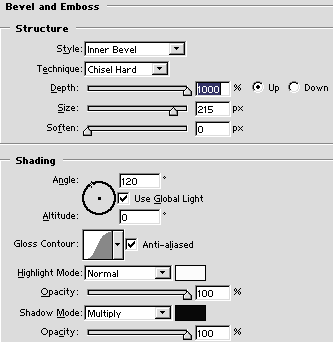
Next drop down to the Bevel and Emboss settings and use the following values...
 6.
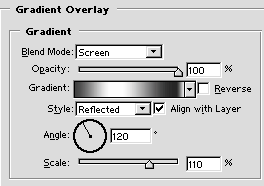
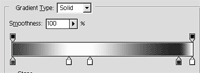
Now go to the Gradient Overlay box and use these settings. You will need to get the gradient to look like the one I used. To modify the gradient double click on it and add and change the slider to resemble this.
 7.
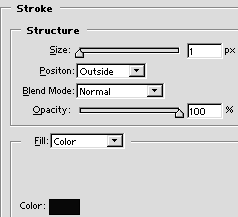
Now go to the Stroke area and use the values I have in here.
 8.
Now lets group all of our effects together once we get them how we want them. To do this go ahead and create a new layer above the text layer. Then make sure the text layer is selected and go to Layer/Rasterize/Type Then link the type layer and the new transparent layer above it and merge the two of them together. Now we have the look of all of our layer effects but you can see now they have disappeared. Good. Now we can click on our type layer and add a New fresh drop shadow to our text and it won't mess any of our old setting up anymore.

NOTE: This technique works best when you use a larger workspace. If you need the text smaller it is best to size it down "after" the technique has been completed... For a neat add on to this tutorial check out "rough up the chrome".

If you have any questions or comments regarding this tutorial please post it in this thread
http://forum.teamphotoshop.com/showthread.php?t=24753
Print Article


Login / Register
... Or Register


From The Forums...
Please tell your comments
Hi everyone, Please view this art [URL="http://sp...
A cool Website to upload your Arts...
If you are looking for a really cool good looking ...
PDF Editor-Edit PDF parameters after converting xls/xlsx to PDF
[img]http://www.oxpdf.com/images/screenshot/excel-...
Custom PDF document with Word to PDF Converter
[img]http://www.oxpdf.com/images/screenshot/word-t...
Create PDF files from Windows programs with PDF Creator
[img]http://www.oxpdf.com/images/screenshot/pdf-cr...
... Go to Forum


Tutorial Image

Stamp out unwanted data using the rubber stamp tool.
Tutorial covers removing part of an image using the rubber stamp tool....

Tutorial Image

Retouching a photo. Step 2: Using a curves adjustment.
Part 2 of our photo retouching series. This tutorial covers curves adjustment...


© Web Media Network Limited. All rights reserved. No part of this website may be reproduced without written permission. Photoshop is a registered trademark of Adobe Inc.. TeamPhotoshop.com is not associated in any way with Adobe, nor is an offical Photoshop website.
..