TeamPhotoshop
 
Let's roughen up that nice smooth chrome we made...


Add on tutorial: Rough up our nice chrome text
1.
This is an "add on" tutorial to the chrome text effect for Photoshop 6. So the first step is to complete that tutorial. Then come back here (leaving your .psd open).

 2.
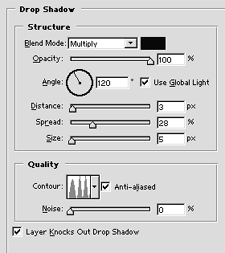
Once you have completed that tutorial we are ready to really roughen up our chrome. The first thing we need to do is to go into our layer styles and modify a few of the settings. Go to the drop shadow setting and change the Distance to 3, Spread to 28, and the size should be 5.

 3.
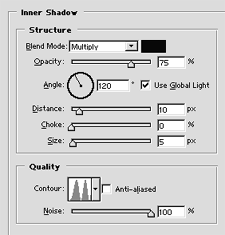
The next step is to go into the Inner shadow settings and raise the Noise value to 100. That should be the only change for this area.

 4.
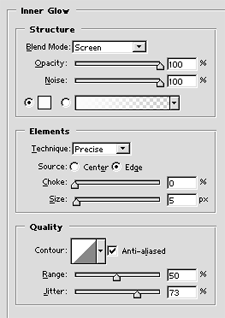
Next is the Inner Glow settings. Change the Blend Mode to Screen, Opacity should be 100%, Raise the Noise to 100%, the Choke to 0, the Size to 5, and the Range to 50, and the Jitter to 73.
 5.
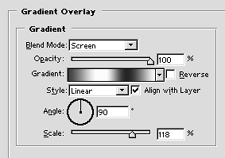
Now go into the Gradient Overlay and change the Style to Linear, the Angle to 90, and the Scale to 118. Now all I did to finish this picture off was to add a drop shadow to it. If you want to give your image a color just go to the Color Overlay settings and add some color to your image...


If you have any questions or comments regarding this tutorial please post it in this thread
http://forum.teamphotoshop.com/showthread.php?t=24738
Print Article


Login / Register
... Or Register


From The Forums...
F/S:Sony Ericsson Idou(Satie),ETEN glofiish X610,Blackberry Curve 8900 @discount rate
Email: [email]mobilestore_limited@live.co.uk[/emai...
F/S:NokiaE75,E71,E65,E55,N97,N85,N96,N95,5730,5320,5 800 XpressMusic@dicount rate
Email: [email]mobilestore_limited@live.co.uk[/emai...
3G iphones,HTC touch,Samsung omnia...$300,Sidekick
DAGAMES ELECTRONIC Ltd is a leading supplier of hi...
Nikon D80 Digital Camera with 18-200mm Lens---$420usd
DAGAMES ELECTRONIC Ltd is a leading supplier of hi...
help with blur on font
In the Outer Glow dialog box, try setting the blen...
... Go to Forum


Tutorial Image

Blending edges when you are making a composite photo.
Tutorial covering blending edges...

Tutorial Image

Using the lasso and magnetic lasso to make your selections.
Using the handy ol' lasso. Essential reading for the beginner...


© Web Media Network Limited. All rights reserved. No part of this website may be reproduced without written permission. Photoshop is a registered trademark of Adobe Inc.. TeamPhotoshop.com is not associated in any way with Adobe, nor is an offical Photoshop website.
..